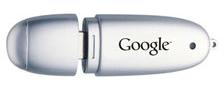
A desktop computer equipped with a CD writer or a DVD burner is a rare sight in most companies. But a much larger security threat is posed by the open USB ports where mischievous office workers can just plugin the Flash Pen Drive, External Hard Disk or their iPod music player and transfer corporate data or even copy licensed software to their memory sticks in seconds.
Also, USB keys are not just a popular way to sneak data out from companies, unhappy employees may use USB ports for delivering trojans or spyware into the company networks.
Now some smart admins disable usb drive by changing the BIOS settings and then lock the BIOS using passwords. Some not so-smart admins fix tapes over the USB ports to prevent employees from inserting any USB device into their computer.
However, both these approaches can prove to be counter-productives as your staff can no longer use USB keyboards, wireless mouse, digital cameras, camcorders, scanners, printers or even USB microphones to their computers.
So a more reasonable option for sysadmins is to disable write access to USB port so that data files cannot be written to the mass storage device. The USB thumb drive will be read-only.
Open the Windows Registry and open the following key
HKEY_LOCAL_MACHINE\System\CurrentControlSet\ Control\StorageDevicePolicies
Now add a new DWORD called WriteProtect and put the value as 0 to disable write privileges to the USB port. To reverse the step, either delete the WriteProtect REG_DWORD or toggle the value to 1 which will enable the port.
Remember that the above trick works only with Windows XP SP2.
If you like to go a step further and disable users from connecting USB storage devices to their computers, here's the trick:
Open registry and navigate to the following registry key:
HKEY_LOCAL_MACHINE\SYSTEM\CurrentControlSet \Services\UsbStor
Now in the right pane, double-click Start and type 4 in the Value data box (Hexadecimal) and quite the registry editor. To enable the USB storage devices, change the Start value back to 3.
No matter how good the protection tricks are, determined people always find workarounds. Here are some of the tricks that may render the above methods unusable:
» Employee may boot computer using a LiveCD like Knoppix or Ubuntu so the USB drives are again available to him for writing.
» They could open the computer chasis, take the battery out to reset the BIOS settings.
» Some may even invest in a PS2 to USB port converter.
» If he manages to get admin access for a temporary period (like installing software), he may undo the registry edits.
The cat-mouse game will never end. USB drives will remain a headache for the sysadmins for some time. However, Windows Vista will make life much simpler for IT administrators. There's a new Policy in Vista that allows USB keyboards or mouse to be used but not any USB devices.


